
Experiencing failure with your WD external hard drive can be frustrating, more so when it fails to appear or work on your PC. While this is not a novel issue, it remains challenging for the average user.
This article presents one quick fix and four comprehensive methods to remedy this situation. Stick around, and we’ll help you fix this problem.
Quick Fixes to Try for Unrecognized WD Portable Hard Drive Problem
The first step you can take to rectify your undetectable external hard disk drive is to change the USB port/cable. If this doesn’t resolve the issue, follow these steps:
- Click Start on your Windows PC.
- Type: devmgmt.msc. Hit Enter.
- Open Device Manager.
- Go to Expand Universal Serial Bus controllers.
- Right-click on the USB Root Hub.
- Select Properties.
- Go to Power Management and uncheck. Allow the computer to turn off this device to save power.
- After these steps, reboot the PC and reconnect the portable hard drive. If the problem persists, pursue the following methods.
Troubleshooting Western Digital Drive Not Recognized Error
Reboot the Windows PC into Safe Mode
Rebooting your PC into safe mode allows better troubleshooting of the issue. Here is the process:
- Go to Settings.
- Select Update & Security.
- Tab on Recovery.
- Choose Advanced Startup
- Select Restart now.
- Choose F4 to reboot the PC into Safe Mode.
- Verify if the hard drive appears.
Change Drive Letter on your Windows PC
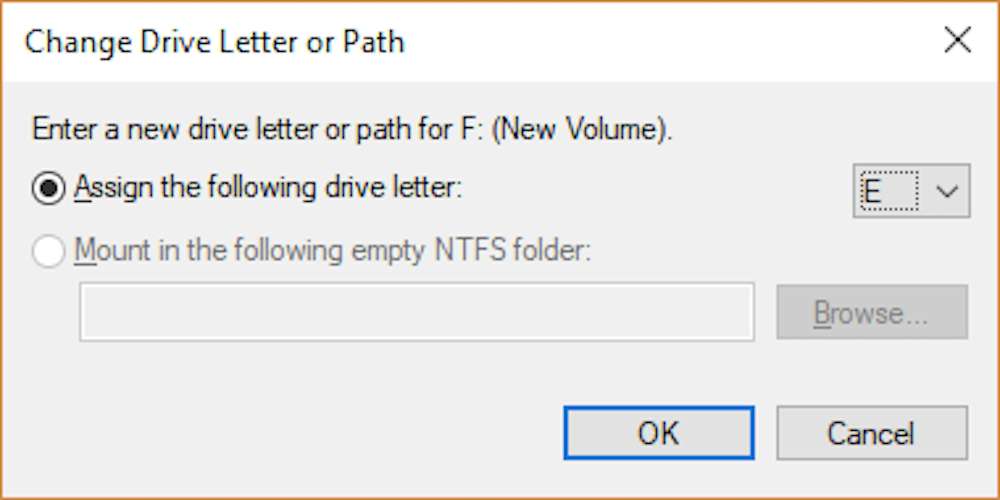
Changing the drive letter with the Disk Management tool can also make your WD storage recognized by the PC:
- Right-click on This PC/My Computer.
- Choose Manage.
- Go to Disk Management.
- Look for your external hard drive.
- Right-click it by choosing Change Drive Letter and Path.
- Assign the drive a new letter that doesn’t exist in your PC.
- Mark the Partition as Active.
- Restart your Windows PC.
- Remember to watch relevant video tutorials on any step that you find intricate.
Tips for WD HDD Not Responding
There are two quick methods to remedy a non-responsive Western Digital external drive:
Update Driver
Updating your Western Digital hard drive driver can make it functional:
- Click Start.
- Access the Device Manager.
- Type devmgmt.msc.
- Expand Universal Serial Bus controllers.
- Right-click every USB device.
- Click Uninstall.
- If the storage device is unrecognized, go to the drivers tab and delete/uninstall the driver, then revisit it in My Computer/My PC.
Reparation of Corrupted System Files/Bad Sectors

Corrupted system files or bad sectors on Western Digital portable drive will block your device from working on a Windows PC. You can repair these sectors and rectify corrupted system files using professional software.
Finally, in case you lost files on the WD storage, professional data recovery solutions can easily restore your lost files.
Wrapping It Up
Various reasons might be responsible for the invisibility of your WD Passport external hard drive, ranging from drive letter conflict and outdated drive driver to corrupted file system error.
Fortunately, an erring external or portable hard drive can be repaired. When containing several bad sectors, use a WD hard drive repair tool. If there are many bad sectors, it’s recommended to use an HDD repair tool to upgrade data to a healthy disk.