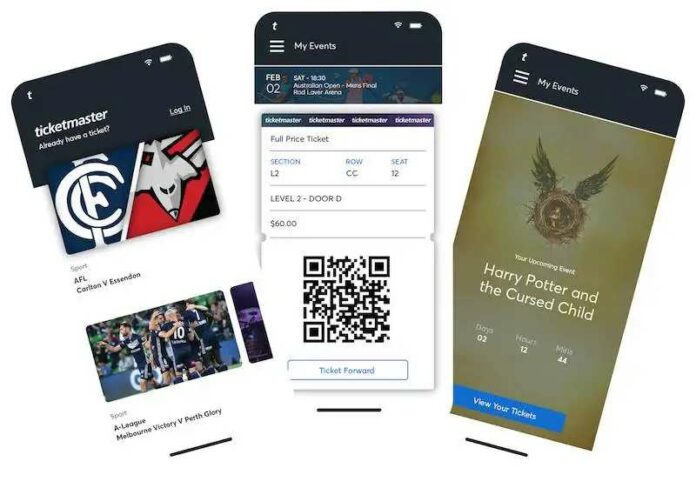

Love them or hate them, Ticketmaster is often the only option for users looking to buy tickets to concerts and events online. The company was founded in 1976 and has since grown to become one of the largest ticketing companies in the world.
Ticketmaster operates in multiple countries and partners with numerous venues, promoters, and teams to sell verified tickets to events. Customers can choose to receive tickets electronically or by mail.

In addition to ticket sales, they also provide marketing and distribution services for event organizers, and offers tools and services to help manage ticketing and event logistics. However, the payment process can be riddled with errors, so what can you do about this?
How Troubleshoot Payment Errors on Ticketmaster
Error code 5005, 504, or U533 typically indicate a problem with the payment processing. Thankfully, it’s usually not too difficult to parse what’s going wrong, and fixing payment issues is always reasonably straightforward.
To make things more simple, we’ve compiled a few guides for you below that will take you through each step of the process. So, let’s get right into fixing the issue.
Verify your Credit or Debit Card Details on your Account
- Sometimes, your payment method not being properly verified can lead to payment issues down the line.
- Go to the payment settings.
- Search for your payment option details.
- Select your default option.
- Make sure all your data is correct.
- Save everything.
- Try to purchase things again.
Try Using a Different Payment Method to Pay for Tickets

- If you have other payment methods available, give them a try.
- When prompted to pay, choose a different payment method.
- Input all the necessary information.
- Wait for Ticketmaster to register your new payment method.
- Attempt to make a purchase with your new payment method.
Clear your Browser’s Cache and Cookies
- Clearing your browser’s cache and cookies can usually help resolve errors like this.
- Go to your browser’s settings menu.
- Go to the Security section of the settings.
- Click on Clear browsing data.
- When prompted, choose to delete cookies and cached information.
- Wait for your browser to finish deleting.
- Restart your browser.
- Go to the their website.
- Sign-in as you usually would.
- Try to purchase things again.
Use a Different Browser to Pay for your Tix

- Browser incompatibility can often be the reason for these errors.
- Download and install a different browser from the one you’re already using.
- Go to ticketmaster.com.
- Sign-in as you usually would do.
- Attempt to make a purchase with your new payment browser.
Wrapping Up!
If you’ve followed all these steps accordingly, then your payment should be working again. If it’s still raising errors however, the problem may be with Ticketmaster’s payment processing system.
If this is the case, you’ll need to contact support and wait for the issue to be resolved by them. We hope we managed to help you fix your errors, and for more fixes like this, stay tuned.