Party chats make playing your favorite Xbox games even more fun and exciting. After all, this feature lets you join your friends and fellow players through voice or video chats while you play a game together, watch a show, or just hang out.
You can also adjust the settings so you can limit the specific number of people you can chat with, giving you full control of the experience.
However, some players have been complaining about getting the 0x89231053 or 0x89231806 every time they try to join or start a party on the Xbox app for Windows computers.
How to Fix Xbox Error Code 0x89231806, 0x89231053 Unable to Start or Join Party Chat
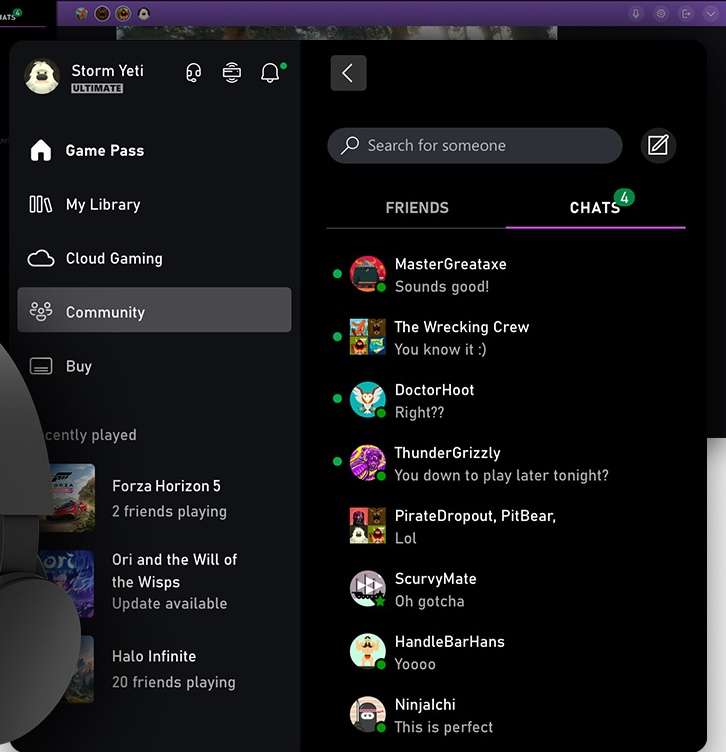
While seeing such error codes can be a complete bummer, the good news is that there are a few steps you can take to ensure that you can say goodbye to it sooner rather than later.
Check the Status of Your Xbox Device
If you’re trying to start or join a party and you received the error code 0x89231053 or 0x89231806 while doing so, the first thing you can do is go and check Xbox Live’s service status. Aside from the error codes, you might also be prompted by an interruption message that tells you that the Party service currently has an interruption.
Once you see and read this message, the best thing you can do is to wait for some time until the Xbox team releases an update. Of course, there’s nothing much you can do if the problem is on Xbox’s end so you’re left with no other option but to just wait it out.
Test Your Internet Connection for Integrity
Your internet connection can make or break your Xbox experience, especially if it has something to do with joining or starting a party. If your connection is weak or poor, simply reboot your router. After the restart, be sure to check if you can already participate in a party.
Reset the Settings of the Xbox App
Another potential method you can try to get rid of the error codes 0x89231806 and 0x89231053 is to reset the settings of your Xbox application. To perform a reset, simply follow the steps below:
- Click the Start button and choose Settings.
- Click Apps & Features.
- Select Advanced options.
- Click Reset to complete the process.
Try to wait for some time and reboot your device. Once you’re finished, check if the problem is resolved.
Set NAT Type to Open
The issue with 0x89231053 or 0x89231806 may show up if the party chat is blocked by the network settings. The Xbox support team states that setting the NAT type of the console to Open usually fixes the problem.
The error codes may also appear if you’ve fiddled around with your network settings. You can go to the network settings menu of your system to verify the existing NAT setting. If the NAT type displays something else aside from Open, troubleshoot it until you set it to Open.
Wrapping It Up!
Encountering issues with the mentioned error codes when trying to join or start a party on the Xbox app can be quite irritating. However, it can work to your advantage if you know how to fix the problem. Let us know what you think in the comments section below.