

The video gaming brand Xbox has been a force to reckon with in the market ever since its introduction back in 2001.
But even such a renowned name also falls short at times, with some users reporting that they encounter some error codes like 0x80190190 and 0x87e50033.

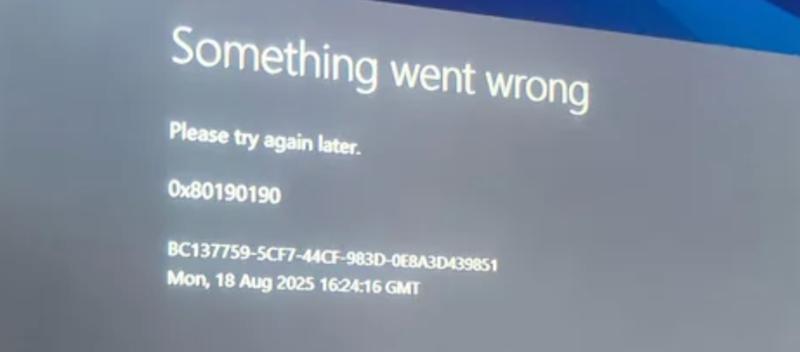
Workarounds for Error Code 0x80190190 and 0x87e50033 on Xbox Console
Here are some of the things you can do to fix these issues:
Check for the Latest Updates
Error codes sometimes show up if your system is not updated. New system updates are constantly rolled out to solve bugs and glitches. Go to the System Tab under the Settings menu. Click Console Details. Choose Updates on your device to see if there are new updates available. Just download and install if there are any and you’re good to go.
Inspect Internet Network Connection for Issues
Connectivity problems may also lead to error codes on your Xbox. The most obvious solution is also the simplest and easiest fix for this issue. Disconnect and reconnect or use a LAN cable. Doing so can improve your gameplay experience. Test your network connection to determine if everything is fine.
Clear your Cache Data
Clearing the cache of your Xbox is another solution that can help eliminate most error codes. The cache is the storage space for temporary files. Its purpose is to speed up your console every time it launches your games and apps.
However, over time, this cache can get corrupted or clogged, resulting in issues. So go ahead and clear your Xbox cache. Just hold down the power button for 10 seconds or so and wait for your gaming device to turn off. Disconnect its power cable and wait for one minute. Reconnect the power cable and wait for another minute. Switch on your console and see if the error code is gone.
Reset the MAC Address of Your Xbox
If the above steps don’t solve your issue, your next option is to clear your MAC address. Follow these steps to reset the MAC address:
- Click the Gear icon to open the Xbox Settings menu.
- Go to the Network Tab under the General option in the upper right corner.
- Click Network Settings.
- Select Advanced Settings.
- Choose the option Alternate MAC Address.
- Click Clear.
You will now be instructed to reboot your device to revert all your network settings to their default settings which will hopefully fix the issue and get rid of the error codes.
Uninstall and Reinstall the App or Game on Console
If none of the steps above worked, your last option is to just uninstall the app or game and install it again so you will get a fresh start with things without encountering any error codes. All you have to do here is to delete the app or game involved with the code and install and download it again.
The Bottom Line
Learning how to fix Xbox game error code 0x80190190 or 0x87e50033 will ensure that you can go back to your gaming experience without worrying about any glitches. Error codes are no fun so make sure you follow the tips above to fix your problems in no time.